DxO PhotoLab 10 — Two-minute lesson 01: Recover sky detail
Lesson 01 · Recover sky detail · 2:00 minutes
By Sourov Deb. I am a DxO ambassador. DxO did not author this. No DxO approval is implied.
Goal
Reveal the cloud detail. Keep the foreground visible.
We have all been there. The mountains look right, but the sky above them is a flat white sheet. The good news: a RAW file usually holds more in those bright clouds than the screen first shows. In two minutes you will get it back without plunging the landscape into darkness.
Start with the timeline below. Each step moves the drawn landscape to what you would see in PhotoLab at that moment. Then take the controls yourself.
The tutorial
Step 1 · Open your image (00:00–00:20). Open a RAW landscape and go to the Customize tab. Look at the sky first, then the foreground. Ask yourself one question: do the clouds have texture, or are they just white?
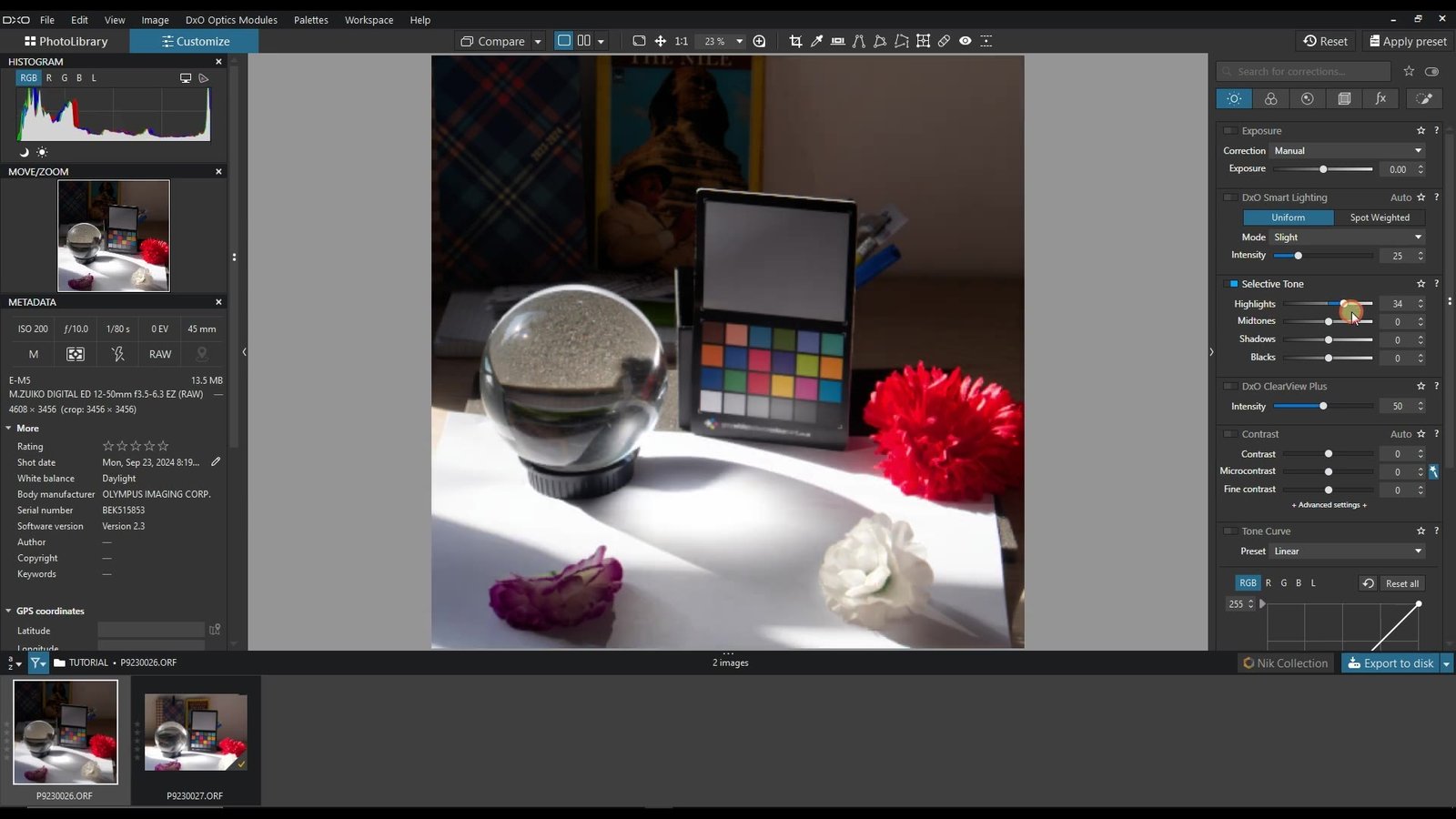
Step 2 · Recover highlights (00:20–00:45). In the Light tools, open Selective Tone and pull Highlights to the left. Do this first. DxO describes this slider as the one that recovers detail in the brightest areas, such as a sky with bright clouds. Watch the clouds, not the slider. If the whole picture is getting darker, you have gone too far.
Step 3 · Select the sky (00:45–01:20). Open Local Adjustments and choose the AI Mask tool. Click Add a predefined mask, wait for the analysis, then pick Sky from the list. Zoom in on the ridge line. If the edge looks hard, the Diffusion slider in the mask options softens it.
Step 4 · Refine the sky (01:20–01:45). With the sky mask active, lower Exposure a little and try a touch of DxO ClearView Plus for depth in the clouds. Stop before a bright halo appears along the mountains. That rim is the sign to back off.
Step 5 · Compare results (01:45–02:00). Press the Compare button in the top toolbar to see the image without your corrections, then release it. Check the cloud detail, then the mountain edges. Happy? Export your edited copy.
The 2:00 timeline
Sky-recovery simulator
A drawn simulation, not your photograph. Drag across the picture to move the before/after divider.
Your turn: try the adjustments
Practice values. They move the simulator, not your photograph.
Start here. Adjust while watching the image.
Your turn
Now use your own photograph. Open a landscape with a bright sky and follow the same five steps. Go slowly. Your eye is the best meter you have.
Want the basics behind this lesson? Read DxO PhotoLab 01: Exposure and Brightness, and keep the photography terms guide open for words like highlights, clipping and halo.
Same lesson in Affinity Photo
Recovering blown-out highlights works in other editors too. Here is how I do it in Affinity Photo.
Try PhotoLab 10 yourself
If you are getting PhotoLab 10, Nik Collection or PureRAW, apply the code PAR_THD25 at checkout for 15% off. The code is supplied by me and its terms are set by DxO. See what is new on the official DxO PhotoLab 10 page.
The simulator is a drawn illustration of how these tools behave. It is not DxO software.