Photography 01: Exposure and Brightness in DxO PhotoLab
Lesson 1 of 12
By Sourov Deb. I am a DxO ambassador. DxO did not author this. No DxO approval is implied.
Goal
Brighten your subject. Watch the histogram. Preserve texture that matters.
Understand the change
Exposure concerns light during capture. Editing changes the recorded values. Brightness describes the resulting appearance. An exposure adjustment affects brightness. It cannot recapture missing information.
A histogram counts pixel values. Left represents shadows. Right represents highlights. Height represents the pixel count. Its shape follows the scene. The centre is no target.
Before and after
Our test scene contains texture. Watch the sphere and window. At +0.70 EV, both brighten. The window retains its pattern. At +2.00 EV, texture disappears. About 16.5% reaches white. Reducing exposure restores this pattern. The source still contains it.
These numbers demonstrate this scene. They are not recommended settings. The video uses a simulation. It is not PhotoLab output. The orange overlay belongs here. PhotoLab uses its own warnings.
Try this in PhotoLab
Reference: PhotoLab 10 user guide. Sections: Histogram and Exposure. Edition restrictions are not specified. Your installed version remains unverified.
The guide names it Exposure. Earlier documentation uses Exposure Compensation. The tutorial shows PhotoLab 9. Panel positions can vary.
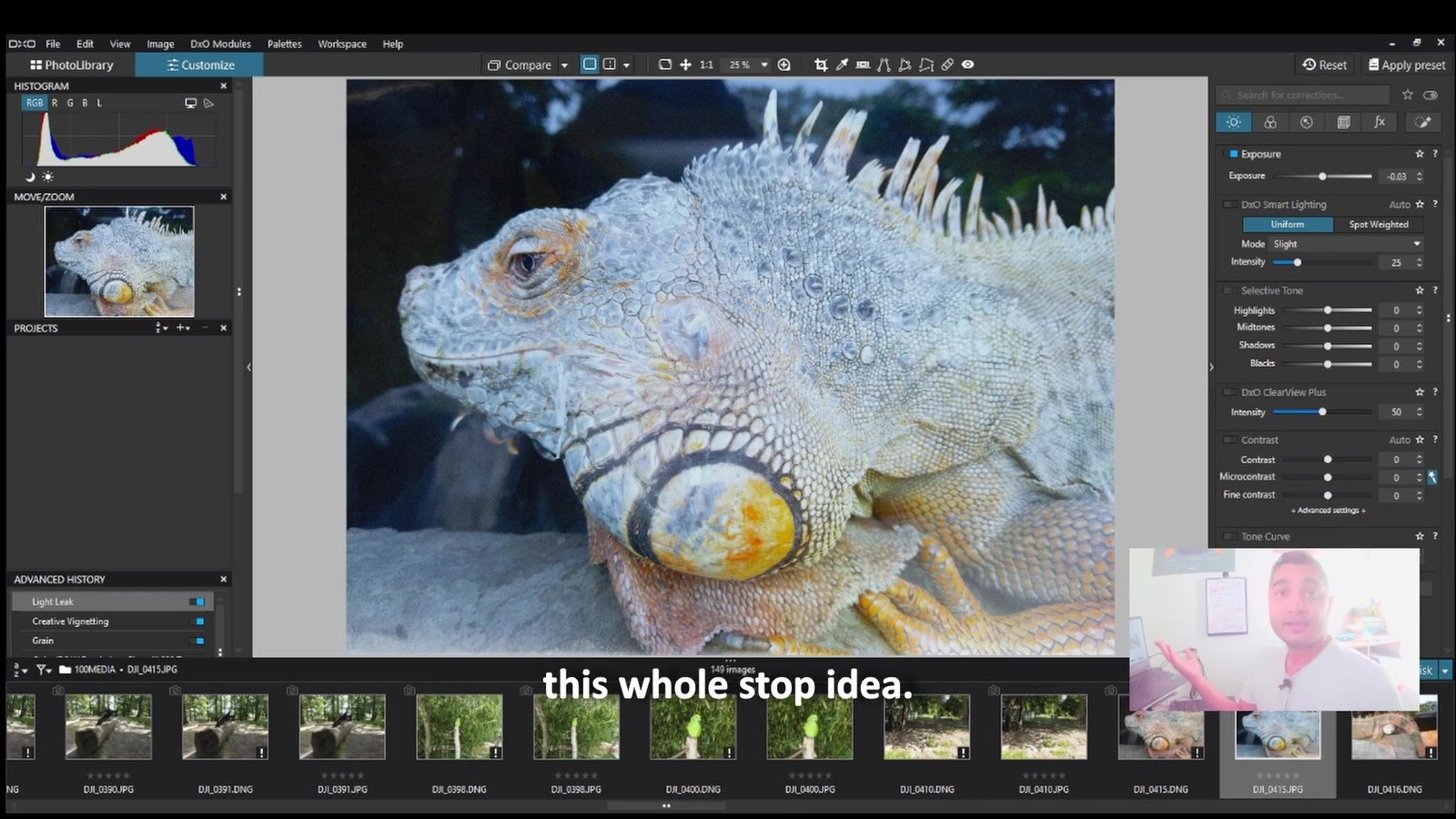
- Choose a RAW photograph. Open Customize. Find the Histogram palette.
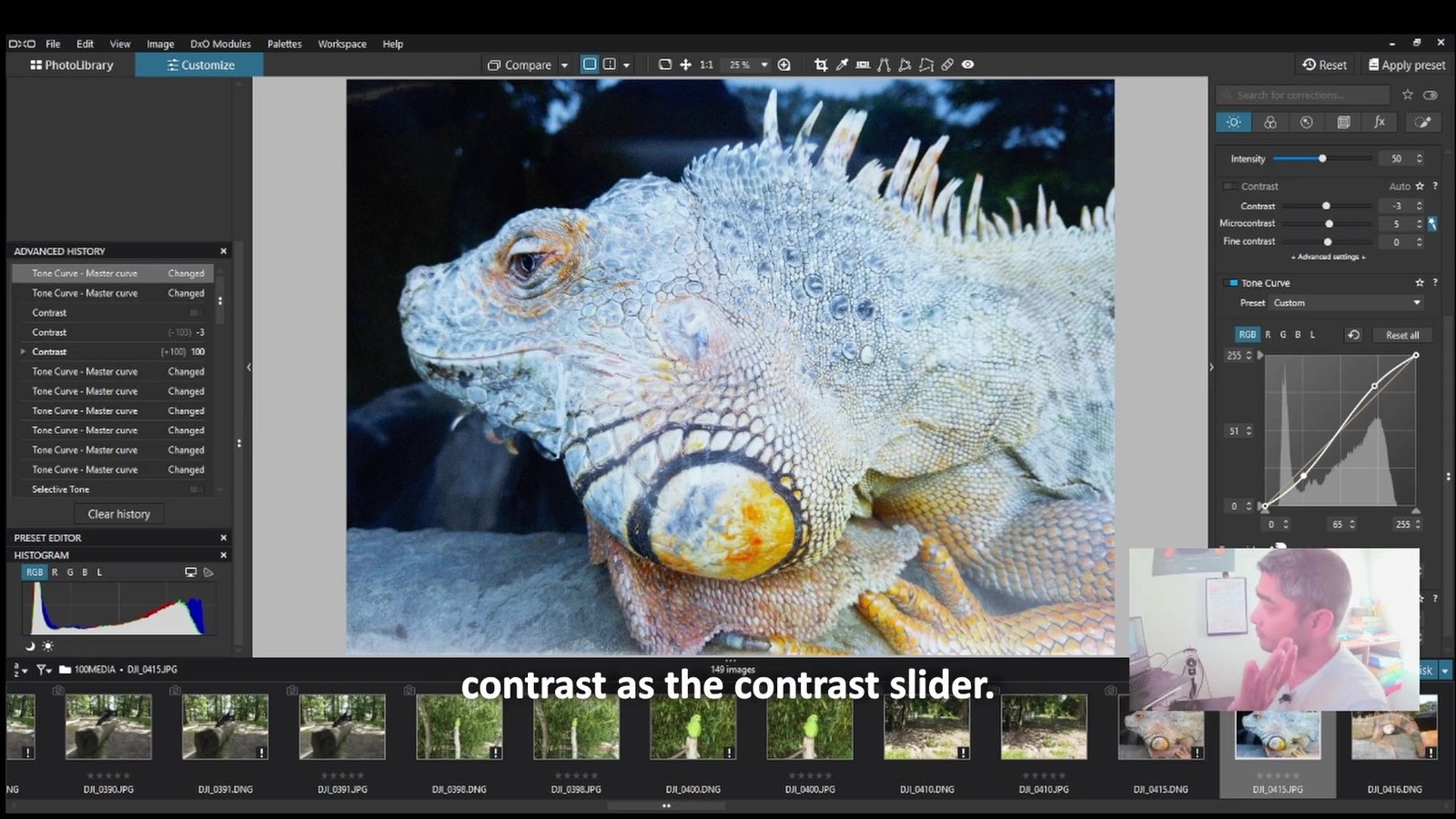
- Open Light, then Exposure. Choose Manual under Correction. Note your starting value.
- Enable the highlight clipping indicator. Increase Exposure in increments. Watch your subject and histogram.
- Inspect texture within highlights. Reduce Exposure when texture disappears. Inspect shadows and colour channels.
- Compare before and after. Keep other settings unchanged. Choose brightness for your intention.
JPEG/TIFF: the guide names Intensity. Their clipped highlights lack recovery. RAW recovery also has limits.
One mistake
Do not fill every bin. A histogram cannot choose mood. A night scene contains shadows. Clipping warnings need context. Inspect where detail matters.
Practice
Find a photo containing texture. Choose texture beside a highlight. Adjust exposure in both directions. Compare texture before and after. Explain your stopping point.
Check your answer
Can you see your subject? Does the chosen texture remain? Where do clipping warnings appear? Reduce exposure if texture vanishes. Compare with the starting image.
Video demonstration
Captioned demonstration. Duration: 2:00. No narration.
Transcript
0:00–0:07 Can you see the subject? Watch the window texture.
0:07–0:15 Brightness changes the whole image. The window changes too.
0:15–0:23 Left: shadows. Right: highlights. Height counts pixels.
0:23–0:31 More exposure moves tones right. Watch the subject and graph.
0:31–0:40 The scene determines the shape. Do not chase the centre.
0:40–0:48 Choose Customize. Open Light. Use Exposure in Manual mode.
0:48–0:57 Watch the subject brighten. The window keeps its texture.
0:57–1:05 Watch the window lose texture. Pixels collect at the limit.
1:05–1:13 Orange marks simulation clipping. These pixels reached the limit.
1:13–1:25 Texture returns in this simulation. The source retained that information.
1:25–1:33 Find texture near a highlight. Increase exposure; watch that texture.
1:33–1:41 Enable PhotoLab clipping warnings. Reduce exposure if detail disappears.
1:41–1:50 Subject visible? Texture retained? Compare before and after.
1:50–1:56 Judge brightness with the histogram. Check where clipping occurs.
1:56–2:00 Brightness is a decision. Protect detail that matters.
Same lesson in Affinity Photo and SILKYPIX
Not using PhotoLab? Here is the same exposure idea in two other editors, from my channel.
Learn DxO PhotoLab 10 with this tutorial series
DxO PhotoLab 10 arrived on 1 September 2026, and it is the version this tutorial series is built around. DxO calls it a new dimension of creative control, and the new tools back that up. Depth Masks let you select the foreground, middle ground or background by distance from the camera. A new colour grading tool adjusts shadows, midtones and highlights from a single colour wheel. AI Masks can now pick out individual people and facial features such as eyes, lips and skin. The U Point toolkit gains a Control Brush and elliptical Control Points, and you can now adjust tones directly from the histogram.
These PhotoLab tutorials start with the basics that every one of those tools depends on: exposure, contrast and the tone curve. Each lesson has one clear goal, a short captioned video, a step-by-step exercise for PhotoLab and a check-your-answer section, so you can practise on your own RAW files at your own pace.
Want to follow along in PhotoLab 10? DxO offers a fully featured 30-day free trial. If you decide to buy PhotoLab, Nik Collection or PureRAW, apply the code PAR_THD25 at checkout for 15% off.
Sources and version notes
Sources checked: 7 October 2026.
Histogram and Exposure documentation. Updated: 1 September 2026.
DxO: Getting started tutorial. Version 9; English captions inspected. Compare: 05:16–05:47. Histogram: 05:49–05:51. Lighting tools: 07:21–07:28.
Demonstration provenance
The test scene was computed. No photograph was copied. Linear values multiply by 2^EV. Values then clamp at one. Display encoding uses sRGB. Histograms count the resulting pixels. Both graphs share one scale. Each bar combines four values. PhotoLab processing can differ.
Simulation clipping counts linear values ≥1. The histogram uses displayed values. Orange marks the simulation threshold.