The Basic Terms in Photography Explained
Learn DxO PhotoLab 10 with this tutorial series
DxO PhotoLab 10 arrived on 1 September 2026, and it is the version this tutorial series is built around. DxO calls it a new dimension of creative control, and the new tools back that up. Depth Masks let you select the foreground, middle ground or background by distance from the camera. A new colour grading tool adjusts shadows, midtones and highlights from a single colour wheel. AI Masks can now pick out individual people and facial features such as eyes, lips and skin. The U Point toolkit gains a Control Brush and elliptical Control Points, and you can now adjust tones directly from the histogram.
My PhotoLab tutorials start with the basics that every one of those tools depends on: exposure, contrast and the tone curve. Each lesson has one clear goal, a short captioned video, a step-by-step exercise for PhotoLab and a check-your-answer section, so you can practise on your own RAW files at your own pace.
Want to follow along in PhotoLab 10? DxO offers a fully featured 30-day free trial. If you decide to buy PhotoLab, Nik Collection or PureRAW, apply the code PAR_THD25 at checkout for 15% off.
🎯 The Big 4 Foundation
If you understand four ideas properly, brightness, exposure, white balance and the tone curve, you can open any editor (DxO PhotoLab, Lightroom, your phone) and know what every slider is really doing. I teach them in this order because each one builds on the one before. Don’t rush. Play with each demo until you can predict what will happen before you move the slider. That’s the moment it has really clicked.
💡 1. Brightness: how light or dark the picture looks
Brightness is about perception: how light or dark the picture feels to your eye. Here’s the catch my students always meet: in most editors, “make it brighter” can be done in two very different ways. An exposure adjustment multiplies every tone, so the bright parts get brighter fastest and eventually hit pure white. A brightness / midtones adjustment mostly lifts the middle greys and leaves the very darkest and very brightest tones roughly where they were.
So when a sky turns white as you brighten a portrait, it’s not your fault: you grabbed the multiplier when you wanted the midtones.
📷 2. Exposure: how much light actually reached the sensor
Exposure is decided when you press the shutter, by three settings that photographers call the exposure triangle. I like the classic rain-bucket picture from Cambridge in Colour: you’re collecting rain in a bucket. Aperture is how wide the bucket is, shutter speed is how long you leave it out, and ISO is how strongly you amplify what you collected. Many combinations give the same amount of “water”. The art is choosing which side effect you want, because each setting has its own:
- Aperture (f-number) → depth of field. Smaller f-numbers mean a bigger opening (yes, it’s backwards). Each full stop (f/2.8 → f/4 → f/5.6 → f/8…) halves the light. Wide apertures like f/1.8 give a blurry background; f/11 keeps more of the scene sharp.
- Shutter speed → motion. Doubling the time doubles the light. 1/500 s or faster freezes most action; around 1/50–1/100 s is typical handheld; slower than that, moving things smear and your own hands may shake.
- ISO → noise. Doubling ISO doubles the brightness but also raises noise (grain and colour speckles). Keep it as low as the light allows, then raise it without guilt rather than getting a blurry photo.
🎨 3. White balance: making white look white
Every light source has a colour. Candles and household bulbs are orange-ish, midday sun is roughly neutral, shade and overcast skies are bluish. Your brain corrects this automatically, which is why a white shirt “looks white” to you at home and outside. The camera has to be told. Photographers describe light with a colour temperature in Kelvin (K). Here’s the counter-intuitive bit: higher Kelvin numbers mean bluer light, lower numbers mean warmer, more orange light.
| Light source (rule of thumb) | Colour temperature |
|---|---|
| Candlelight | 1000–2000 K |
| Household tungsten bulb | 2500–3500 K |
| Sunrise / sunset | 3000–4000 K |
| Daylight, clear sky | 5000–6500 K |
| Shade or heavy overcast | 9000–10000 K |
The Temperature slider fixes blue ↔ orange. The Tint slider fixes green ↔ magenta, which you mostly need under fluorescent and other artificial lights. Shoot RAW and you can set all of this afterwards, losslessly.
📈 4. The tone curve (and the histogram that explains it)
The histogram is a bar chart of your photo’s tones: pure black on the left, pure white on the right, and the height shows how many pixels sit at each brightness. There’s no single “correct” histogram. A snowy scene should lean right and a night scene left. What you watch for is pile-ups against the edges: that’s clipping, and detail there can’t come back.
The tone curve is the most powerful tonal tool you have. The horizontal axis is the tone that goes in, the vertical axis is the tone that comes out. A straight diagonal line changes nothing. Lift a point and those tones get brighter; pull it down and they get darker. The classic gentle S-curve (shadows slightly down, highlights slightly up) adds contrast. Flattening the ends gives a faded, matte “film” look. In PhotoLab 10 you can also drag tonal ranges straight on the histogram, and Selective Tones gives you Highlights, Midtones, Shadows, Blacks and the new Whites slider.
📚 Interactive 50-Term Glossary
These are the 50 words I hear most in my photography and editing lessons. You don't need to memorise them. Use this as a friendly reference: search for a word, filter by topic, open a card, and move the little slider in each one to see the idea instead of just reading about it. Every card ends with a small "try this" exercise. Do even five of them and you'll understand more than most people who've read a whole book.
No terms match that search. Try a simpler word, like "light" or "blur".
🎞️ DxO PhotoLab & Nik Collection: what they actually do for your photos
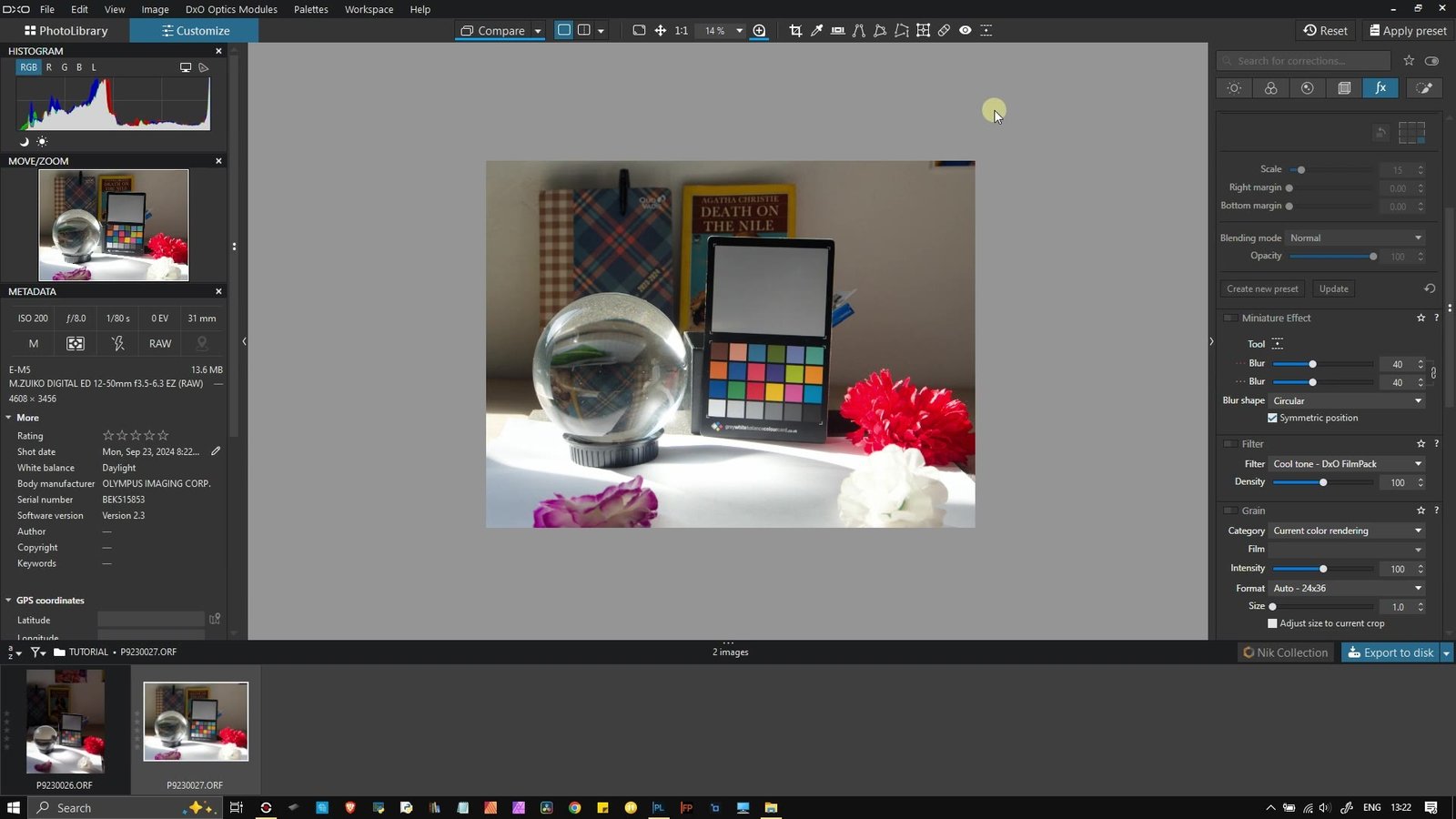
When my students first open DxO PhotoLab, they usually do the same thing: they grab the Exposure slider, push it up, and wonder why the sky turns white. So let me give you the mental model I wish someone had given me. PhotoLab is a RAW developer. Its first job is not to make your photo "pretty"; it is to clean up what the camera and lens did wrong, so that every creative decision you make afterwards starts from the best possible file. Nik Collection is the opposite end: a box of creative tools for looks, black and white, film styles and local colour work.
A simple way to remember it: PhotoLab repairs and develops; Nik Collection interprets.
1. The "invisible" corrections PhotoLab does first
DxO Modules (optical corrections). DxO measures camera and lens combinations in its laboratory. When you open a RAW file, PhotoLab reads the EXIF data, notices which camera and lens you used, and offers to download the matching DxO Module. That module then corrects distortion, vignetting (dark corners), chromatic aberration (coloured fringes on edges) and lens softness automatically. You did not have to touch a slider, and that's the point.
Lens Sharpness Optimization. Instead of applying uniform sharpening, PhotoLab sharpens according to how your lens actually behaves—softer at the corners than at the centre.
DeepPRIME noise reduction. This is the tool people buy PhotoLab for. It is machine learning that removes noise while the RAW file is being converted, rather than smearing it afterwards. In PhotoLab 10 there are two versions: DeepPRIME 3 and DeepPRIME XD3 (eXtra Detail). DxO says DeepPRIME 3 gives roughly the detail of two extra stops of ISO compared with conventional RAW conversion, and XD3 can reach three stops or more. XD3 uses a bigger neural network, so it is slower: keep it for the really hard files, such as concerts, night streets or indoor sport.
2. The tone and clarity tools you'll use on almost every photo
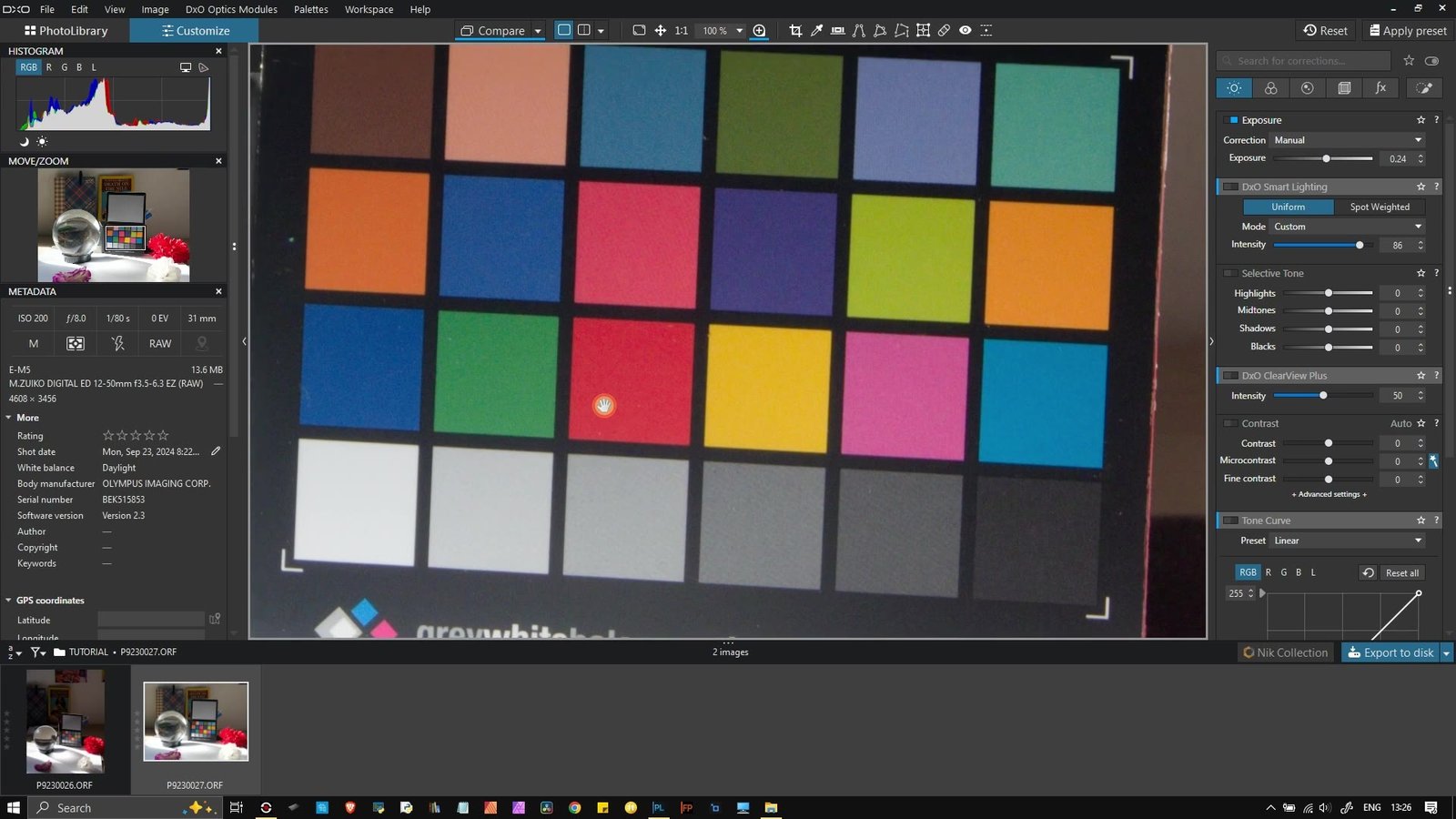
Smart Lighting balances highlights and shadows, so detail survives at both ends. In Uniform mode the presets are Slight (25), Medium (50) and Strong (75); there is also a Spot Weighted mode that gives priority to faces. Think of it as a polite assistant who opens the shadows a little and calms the highlights a little, without making the picture look like fake HDR.
ClearView Plus removes atmospheric haze and boosts local contrast. Its intensity runs from 0 to 100, with 50 as the starting point when you switch it on. Great for distant mountains and city skylines; too much and skies go dark and crunchy.
Good to know: PhotoLab's default DxO Style – Natural preset already switches on gentle versions of these (Smart Lighting at 15, ClearView Plus at 10, and so on), so a freshly opened RAW file is already a little "developed".
Interactive: see the four corrections on one picture
Drag the slider to compare. Untick a box to see what that one correction is doing.
This is a drawn simulation to show what kind of change each tool makes, not a screenshot of PhotoLab's actual output.
3. What's new in PhotoLab 10 (released September 2026)
- Depth Masks: AI builds a depth map so you can select the foreground, midground or background by distance, with feathering handles for soft transitions. No special depth data in the file is needed.
- Color Grading: one colour wheel for shadows, midtones, highlights and overall balance, with the option to link ranges so they move together.
- Smarter AI Masks: select all the people in a scene with one click, or each person separately, and target facial areas such as eyes, irises, teeth, skin or lips.
- AI Masks + U Point: refine an AI selection with the U Point eyedropper, which grows or shrinks it based on colour and brightness.
- Control Brush and elliptical Control Points join the U Point toolkit.
- AI Dust Removal finds and removes sensor dust at the RAW level.
- Workflow: adjust tonal ranges straight from the histogram, plus a new Whites slider in Selective Tones.
4. Nik Collection: seven creative plug-ins
Nik Collection 9 (April 2026) works as plug-ins for Photoshop, Photoshop Elements, Lightroom Classic, Affinity and DxO PhotoLab itself. Version 9 added AI Masks and Depth Masks, 18 blending modes in Color Efex and Analog Efex, and new effects such as Halation, Glass Effect and Chromatic Shift. Tap a plug-in to see when I'd reach for it:
A simple workflow to follow
- 1 · Open RAW, let the DxO Module load
- 2 · DeepPRIME 3 / XD3
- 3 · White balance & exposure
- 4 · Smart Lighting, Selective Tones
- 5 · Local work: AI / Depth Masks, U Point
- 6 · Optional: Nik for the look
- 7 · Export
Same basics in SILKYPIX
Prefer SILKYPIX? This beginner tutorial edits a photo from start to finish with the same core tools.
Sources
- DxO, Introducing DxO PhotoLab 10
- DxO, DxO PhotoLab 10: Key Features
- DxO, DeepPRIME: AI noise reduction
- DxO PhotoLab user guide: The Customize tab and Overview (DxO Modules)
- DxO Nik Collection user guide, Nik Collection 9; DxO Help Center, What are the new features?; DxO, Introducing Nik Collection 8
- Cambridge in Colour, Camera Exposure, White Balance, Camera Histograms: Tones & Contrast
- Cambridge in Colour, Depth of Field
- DxO PhotoLab user guide, Contrast sub-palette (Microcontrast, Fine Contrast)