Photography 03: Tone Curve Foundations in DxO PhotoLab
Lesson 3 of 12
By Sourov Deb. I am a DxO ambassador. DxO did not author this. No DxO approval is implied.
Goal
Control midtone brightness. Use one curve point. Protect both endpoints.
Concept first
A curve remaps tones. X means original input. Y means edited output. The diagonal changes nothing.
Lift one midtone point. Nearby tones brighten. Lower the same point. Nearby tones darken.
Endpoints anchor black and white. One point keeps focus.
Before and after
Before: midtone input equals 128.
Lifted: output becomes about 170.
Lowered: output becomes about 90.
Shadows still begin black. Highlights still reach white.
This example is simulated. It is not PhotoLab output. The curve stays smooth. Values teach direction only.
What changed?
Midtones moved most. Nearby tones followed. Endpoints remained fixed. Histogram shapes shifted accordingly.
Why? Output exceeded input. Lowering reverses that relationship.
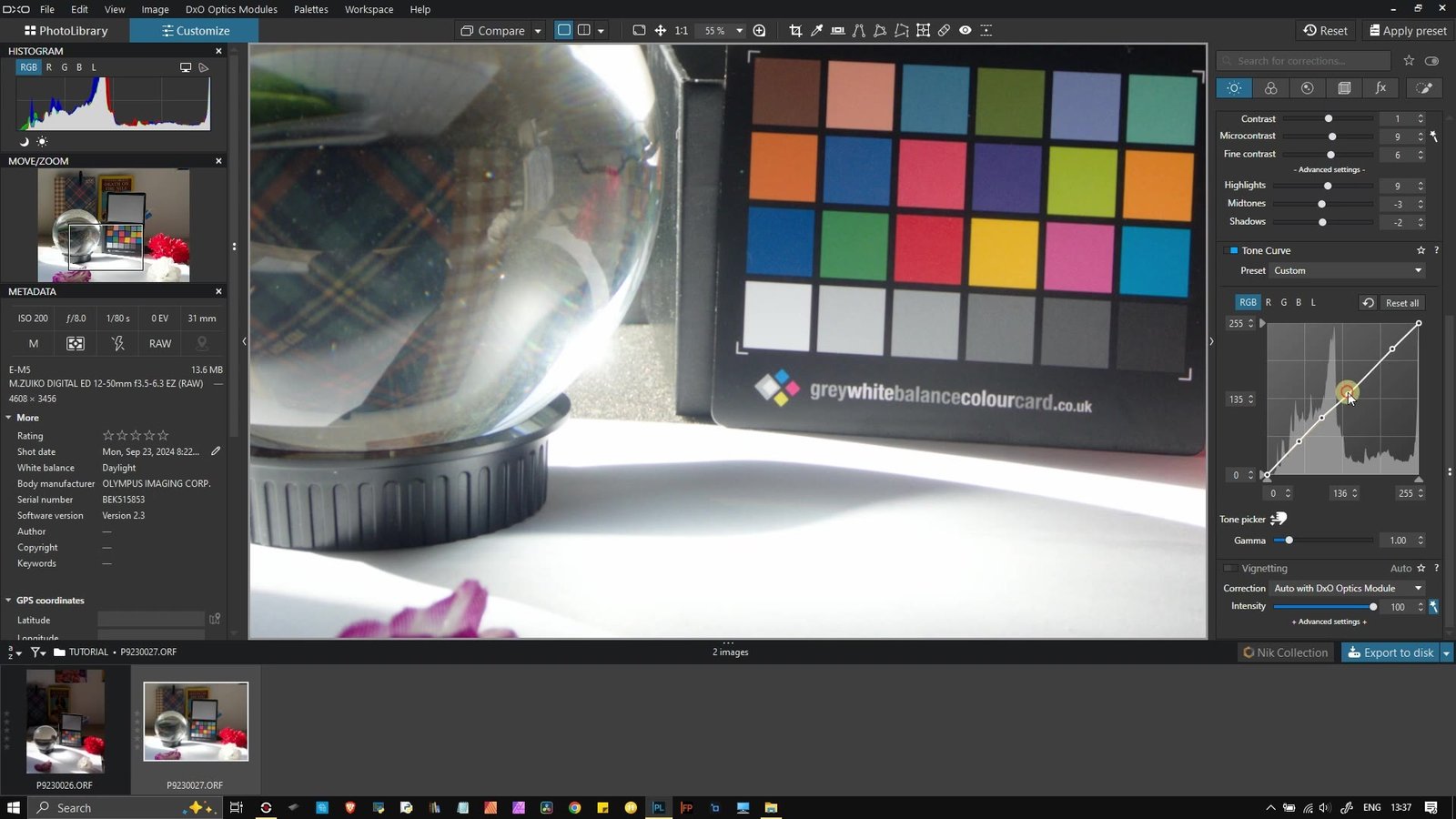
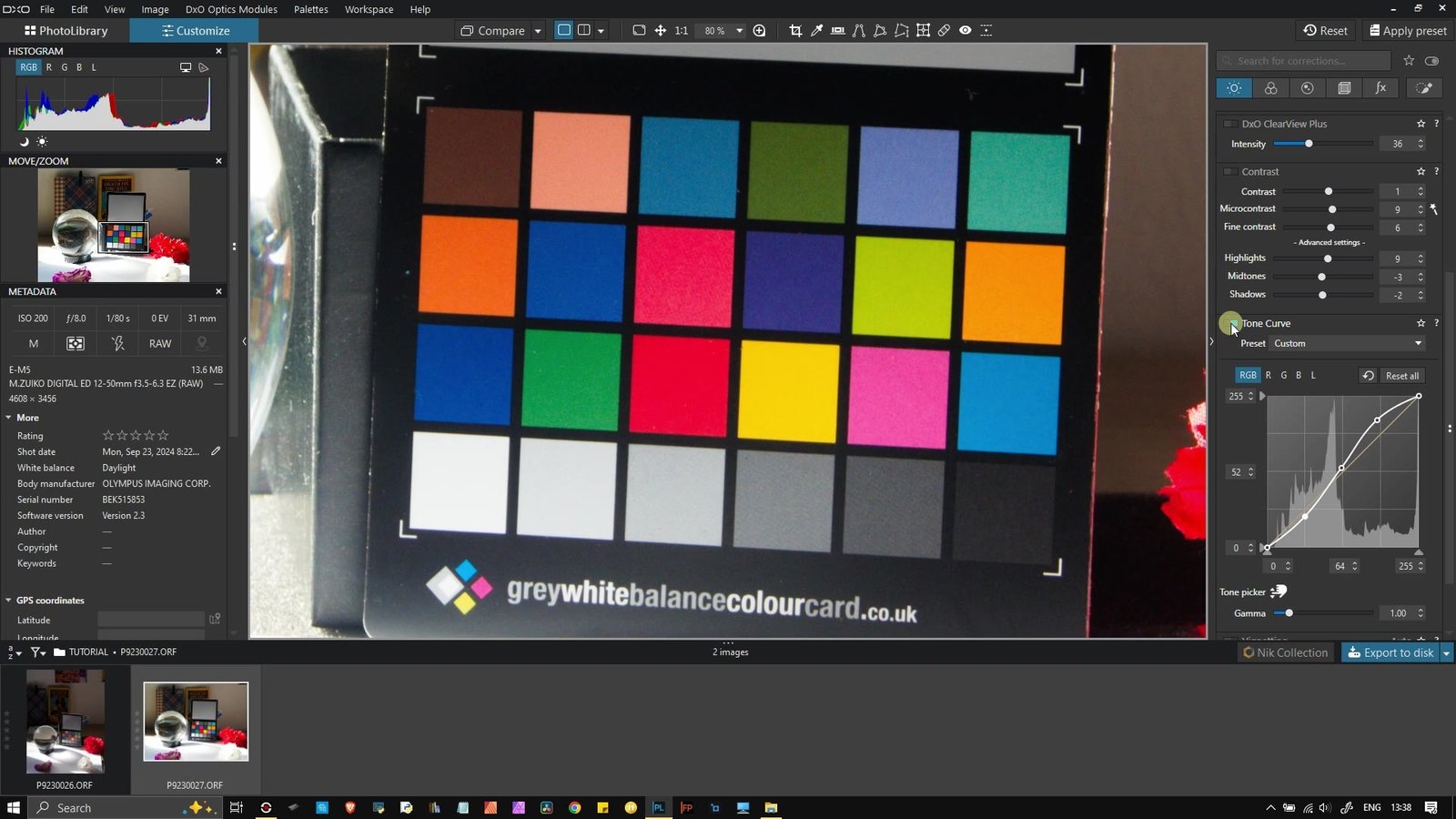
Try it in PhotoLab
- Open Customize.
- Open the Light palette.
- Open Tone Curve. Choose L.
- Click one midtone. Move gently.
Compare before and after. Watch your subject first. Then check the histogram.
PhotoLab 10 names appear. Layouts can differ. Earlier versions may vary.
Common mistake
Moving too far. Tones can bunch together. Subtle detail then disappears.
Short exercise
Choose a midtone subject. Add one point. Lift it slightly. Then lower it.
Answer and self-check
- Upward should brighten midtones.
- Downward should darken midtones.
- Black should remain black.
- White should remain white.
- The histogram should shift.
If endpoints moved, reset them. If detail vanished, reduce movement.
Captioned demonstration
Transcript
00:00–00:07 — What does this graph change? Watch the midtone sphere.
00:07–00:15 — A curve maps old tones. It creates new tones.
00:15–00:23 — Horizontal means original input. Left shadows. Right highlights.
00:23–00:31 — Vertical means edited output. Higher brightens. Lower darkens.
00:31–00:40 — Input equals output. Nothing changes.
00:40–00:48 — Choose Customize, then Light. Open Tone Curve. Select L.
00:48–01:00 — Choose a midtone. Click the diagonal.
01:00–01:14 — Move the point upward. Midtones brighten. Neighbors follow.
01:14–01:25 — Move it below diagonal. Midtones darken. Endpoints stay.
01:25–01:34 — Find a midtone subject. Place one curve point.
01:34–01:42 — Move it slightly upward. Then try downward.
01:42–01:50 — Compare before and after. Check subject and histogram.
01:50–01:56 — X is input. Y output. Diagonal means unchanged.
01:56–02:00 — One point changes tones. Next: build an S-curve.
Version notes
Checked 7 October 2026. The guide describes PhotoLab 10. Its Tone Curve uses X input. Y represents output. The neutral curve is diagonal. L adjusts luminance. Color stays preserved.
The tutorial shows PhotoLab 9. At 04:32–04:44, it opens curves. It selects luminance. It changes highlights and shadows. This lesson uses one point.