Photography 02: Contrast and Tonal Separation in DxO PhotoLab
Lesson 2 of 12
By Sourov Deb. I am a DxO ambassador. DxO did not author this. No DxO approval is implied.
Goal
Increase tonal separation. Keep useful endpoint texture.
Understand contrast
Contrast separates neighboring tones. Brightness moves tones together.
Black anchors the dark end. White anchors the bright end. Midtones sit between them.
More contrast darkens shadows. It brightens highlights. Midtones separate more. Excessive contrast merges endpoint detail.
Before and after
Our computed scene starts softly. Eight swatches remain distinct. Moderate contrast separates them. Sphere shading gains separation.
Excessive contrast causes merging. Three shadow samples become zero. Three highlight samples reach 255. Eight inputs become four outputs. Texture disappears at both ends.
This is a simulation. It is not PhotoLab output. No setting is recommended.
Try this in PhotoLab
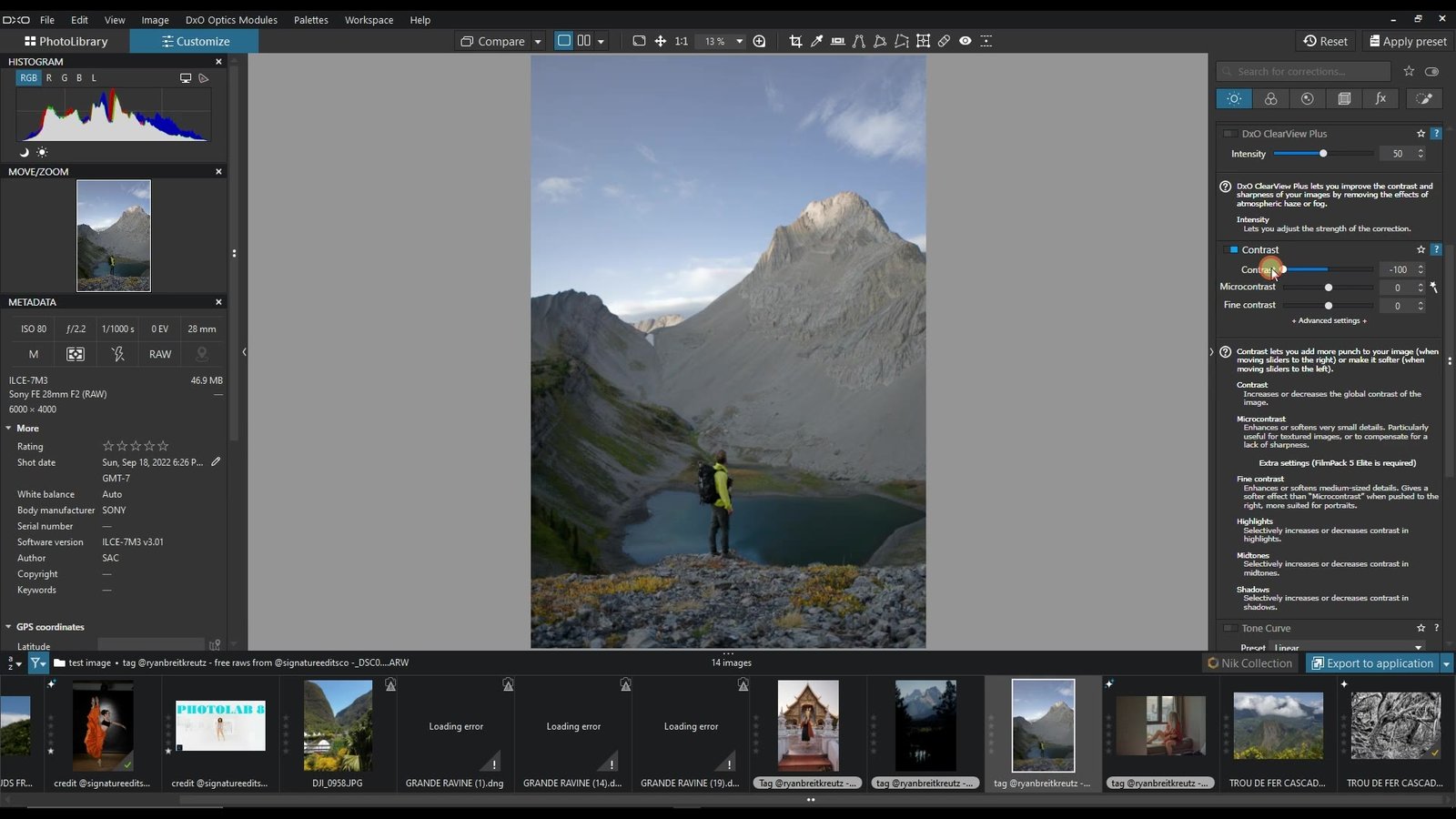
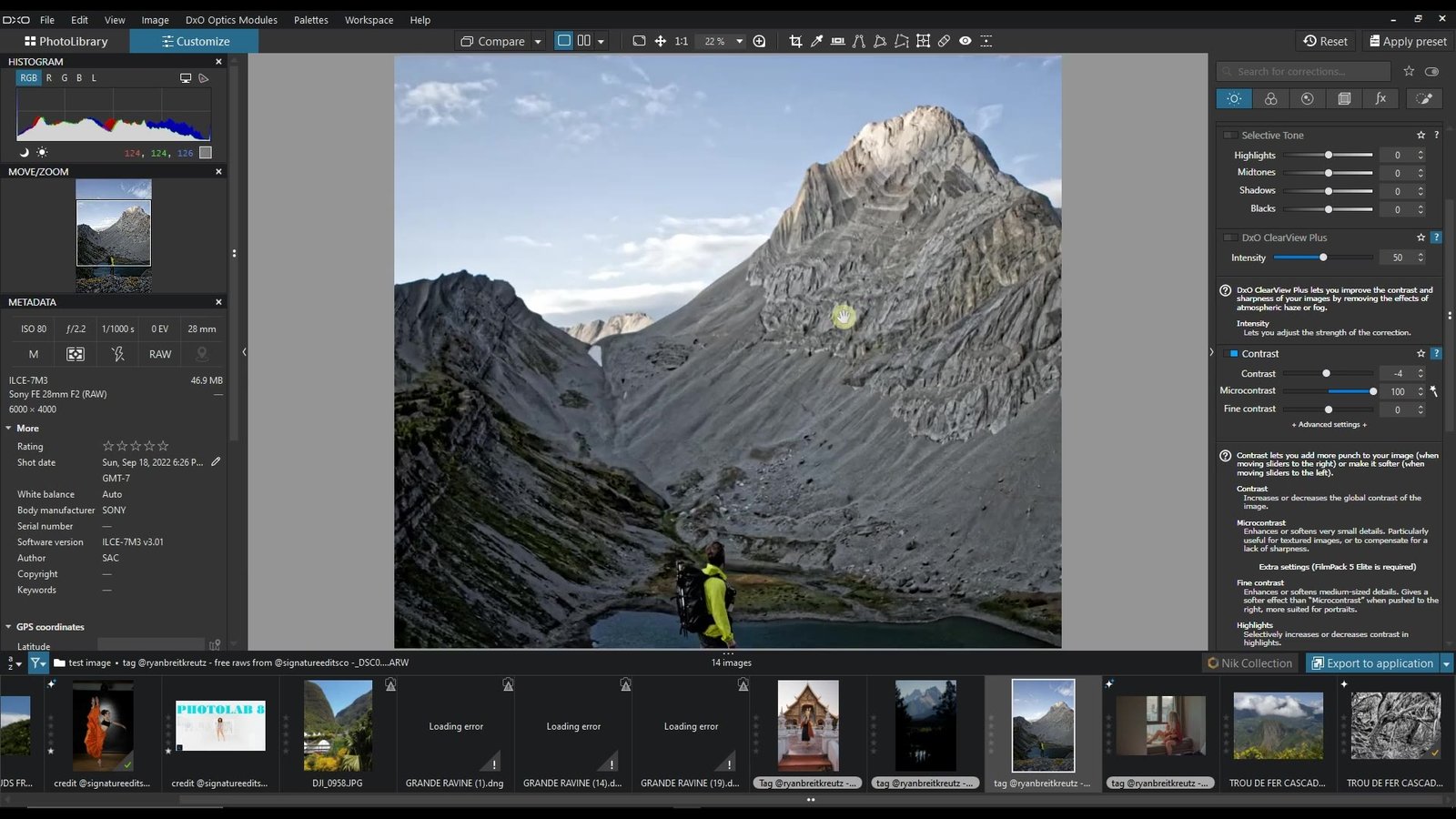
Reference: PhotoLab 10 guide. Open Customize. Select the Light palette. Open the Contrast sub-palette.
Use global Contrast here. Fine Contrast needs FilmPack. Microcontrast is another tool.
- Choose a textured photograph. Set exposure first.
- Find a textured shadow. Find a textured highlight.
- Move Contrast in small steps. Watch tonal separation.
- Enable both clipping indicators. Inspect both histogram edges.
- Compare before and after. Stop before useful texture disappears.
The slider range is −100–+100. That range is not advice. Images need different values.
What changed and why
The simulation applies an S-curve. Shadows move toward black. Highlights move toward white. Midtones gain separation.
At maximum simulation contrast, several values merge. Those details cannot remain distinct.
One mistake
Do not judge centres alone. Check both histogram endpoints. Inspect textured areas too.
Practice
Choose one textured subject. Add contrast in steps. Record your stopping point. Explain which texture mattered.
Check your answer
Does the subject separate? Do shadows retain texture? Do highlights retain texture? Do warnings cover important areas?
If useful texture vanishes, reduce contrast.
Video demonstration
Captioned demonstration. Duration: 2:00. No narration.
Transcript
0:00–0:07 Can you separate these tones? Watch both endpoint swatches.
0:07–0:15 Low contrast compresses differences. Objects can merge together.
0:15–0:23 Contrast separates neighboring tones. Brightness shifts them together.
0:23–0:31 Black anchors the dark end. White anchors the bright end.
0:31–0:40 More contrast spreads midtones. Edges approach both endpoints.
0:40–0:48 Choose Customize, then Light. Open the Contrast sub-palette.
0:48–0:58 Tonal separation becomes clearer. Endpoint texture still survives.
0:58–1:07 Shadows move lower. Highlights move higher.
1:07–1:16 Dark textures start merging. Bright textures start merging.
1:16–1:25 Inspect both histogram edges. Enable clipping indicators.
1:25–1:34 Choose one textured shadow. Choose one textured highlight.
1:34–1:42 Move Contrast in small steps. Stop when texture disappears.
1:42–1:50 Do subjects separate? Do endpoint textures remain?
1:50–1:56 Contrast controls tonal separation. Endpoints protect useful detail.
1:56–2:00 Use contrast with intent. Protect details that matter.
Sources and version notes
Sources checked: 7 October 2026.
Contrast and clipping documentation. Updated: 1 September 2026.
DxO advanced editing tutorial. The page covers PhotoLab 9.
Watch DxO’s tutorial. Higher contrast appears at 04:32–04:44. It uses the Luminance Curve. This lesson uses global Contrast.
PhotoLab 10 documentation says global Contrast applies an S-shaped curve. It also warns about interference with Tone Curve settings. Fine Contrast requires FilmPack activation.
Demonstration provenance
The scene was computed. No photograph was copied. Every histogram uses output pixels. Every swatch uses output data.
The generic model blends identity with a normalized logistic S-curve. Logistic steepness equals 20. The displayed amount changes over time. Eight-bit rounding exposes merged values. PhotoLab processing can differ.